
A memorial video is a short film of photos, usually set to music, that tells the story of someone's life. Families play it at the funeral or memorial service, loop it during a celebration of life, and send it to relatives who could not be there. It does not need editing skills or expensive software. What it needs is time with the photos, and a few decisions made with care.
This guide walks through those decisions in order. If you would rather start right away, the free memorial video maker does the assembly for you: add the photos, a name and dates, pick the music, and download one video file.
1. Decide where it will be played
Before you collect a single photo, decide where the video will be shown. That choice sets the format and the length.
- A screen or projector at the service: use landscape 16:9. Keep it to one or two songs, about 3 to 6 minutes, so it holds attention during a quiet moment of the ceremony.
- A loop at the reception or celebration of life: landscape again, but it can run longer, 8 to 15 minutes, because guests come and go.
- Sharing with family on their phones: vertical 9:16 fills a phone screen and works for Facebook, Instagram Reels or WhatsApp.
If you need both, make the landscape version first, then create a vertical one from the same photos. It only takes a minute.
2. Gather the photos
Ask family members early. Most of the best photos are in someone else's albums or phone. A simple shared folder, or one person collecting photos by message, works well.
How many photos? At four seconds per photo, 20 photos make about a minute and a half, 40 photos about three minutes. For a service video, 20 to 40 photos is a good range. For a long reception loop, you can make two or three videos and play them one after another.
Scanning printed photos:
- Lay each print flat in good, even daylight.
- Photograph it straight on, with the phone parallel to the photo, so the edges stay square.
- Avoid glare: turn off overhead lights and tilt the photo away from windows.
- Crop out the album page and the white border before you add it.
A clean scan matters most for the photos you want to bring to life with AI: faces should be sharp and well lit.
3. Put the photos in order
Chronological order is the most natural way to tell a life story, and it is the easiest for guests to follow:
- Childhood and family roots: baby photos, school portraits, parents and siblings.
- Growing up: teenage years, friends, first jobs, hobbies.
- Love and family: the wedding, children, the family home, holidays.
- Later years: grandchildren, travels, the people and places they loved.
- A last smile: end on a photo where they look happy and at ease.
Within each chapter, alternate close-up portraits with wider group or place photos so the video breathes. Leave out photos that are blurry, very dark, or only show the back of someone's head.
4. Choose the music
The music sets the mood more than anything else. A few guidelines:
- One song for every 3 to 4 minutes of video. A 40-photo video needs about one song.
- Gentle and instrumental works for most services. Piano, strings and acoustic guitar leave room for the photos.
- A song they loved makes it personal. A favourite hymn, a first-dance song or something they always sang along to.
- Fade in and fade out. A sudden start or a song cut off mid-phrase is jarring in a quiet room.
The memorial video maker includes three gentle instrumental tracks you can use freely, or you can upload a song from your device. It loops or shortens the music to the length of the video and fades it in and out. If the video will be posted publicly, use music you have the right to use; platforms may mute copyrighted songs.
5. Add a title card and closing words
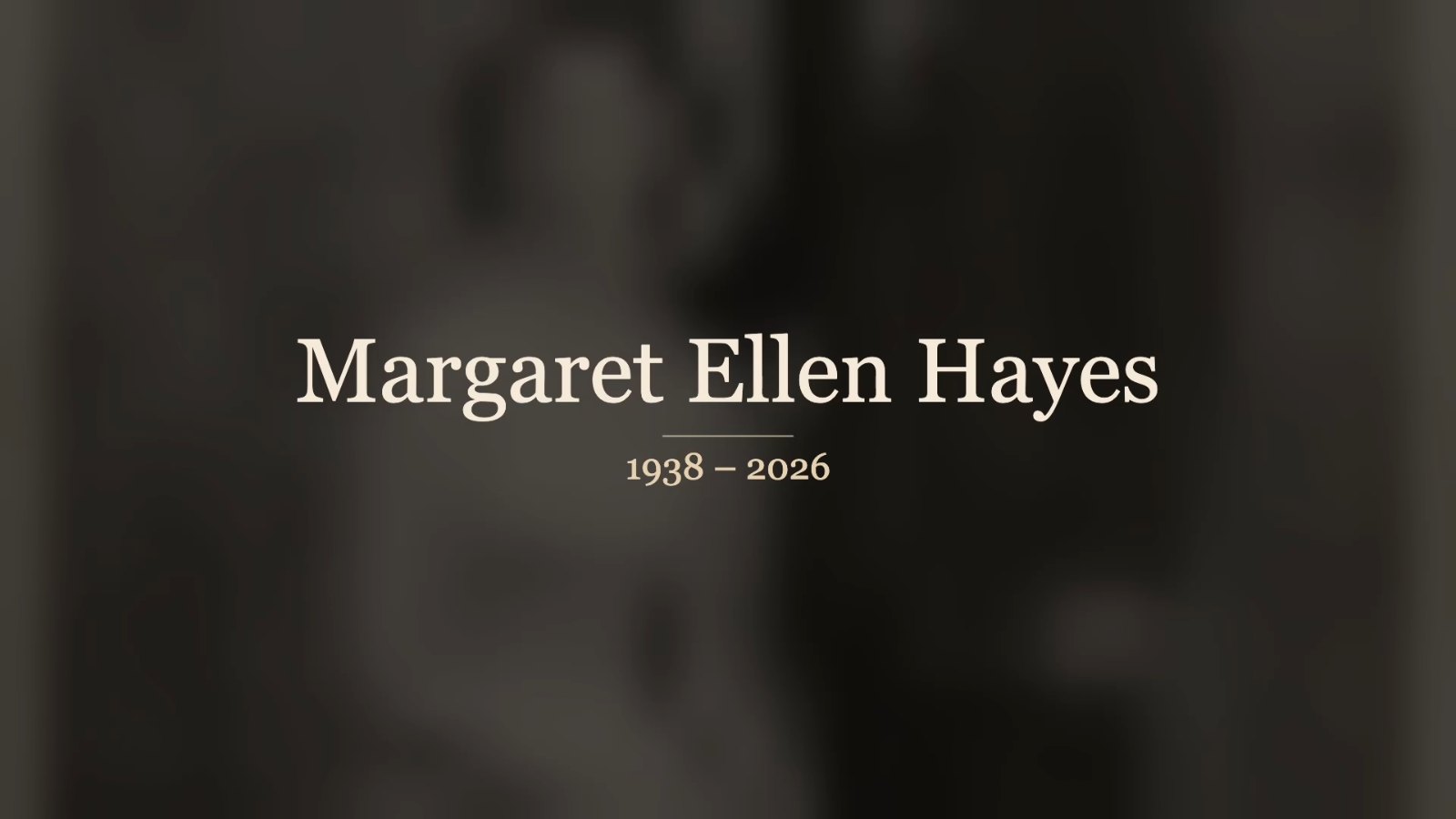
An opening card gives the video a quiet start and tells everyone whose life it celebrates. Keep it simple:
- The full name they were known by.
- The years, such as 1938 – 2026.
A closing card gives the room a moment before the screen goes dark. Short lines work best: Forever in our hearts, Always loved, never forgotten, In loving memory, or a line from a favourite poem or verse.
6. Bring a few photos to life (optional)
AI can now add gentle movement to a still photo: a soft smile, a blink, a slight turn of the head. Used sparingly, it is deeply moving to see a familiar face move again. Used everywhere, it can feel like too much.
Choose three to eight photos that matter most, such as a portrait from their youth, the wedding photo and a recent close-up. Clear, front-facing photos work best. The rest of the photos get a slow pan and zoom, which keeps the video calm and cinematic.
7. Put it together and test it
In the memorial video maker:
- Type the name, dates and closing words.
- Add the photos and drag them into order. Mark the ones to bring to life.
- Pick the music, the format and the seconds per photo, then create the video.
The slideshow is assembled in your browser, so the photos stay on your device, and it is free with no watermark. Photos you choose to animate with AI use credits and take a few extra minutes.
Always test it where it will be played. Copy the file to a USB stick or the venue's laptop, and play it on the actual screen the day before. Check that the sound works through the room's speakers, and bring a second copy.
Common questions
How long should a memorial video be? For the service itself, 3 to 6 minutes is usually right. For a reception loop, longer is fine.
How many photos do I need? About 15 photos per minute at four seconds each. Twenty to forty photos make a complete tribute.
What if we only have a few photos? Use five to ten seconds per photo, bring a few of them to life with AI, and choose one shorter song. A short tribute can be just as meaningful.
Can I make one for free? Yes. The memorial video maker makes the slideshow for free, without an account or watermark.
Looking for ways to make it more personal? Read our tribute video ideas.