Open studio

AI Video & Image Prompt Guide

Write better prompts, pick the right mode and model, then recreate from real showcase examples.

1. Universal prompt formula

aiMakeVideo follows natural language. Stack these building blocks — you do not need every line every time, but clearer briefs usually generate more controllable clips and stills.

Subject

Who or what is on screen — person, product, animal, or scene hero. Keep identity consistent if you will iterate.

Action / motion

What happens over time: walk, pour, turn, orbit, wind in fabric. For stills, imply pose and micro-gesture instead of timeline.

Camera

Shot size, lens feel, and moves — push-in, orbit, handheld follow, locked tripod. One clear move beats three conflicting ones.

Lighting

Key light direction and quality — soft beauty, hard noon, golden hour, neon rim, studio softbox.

Mood & style

Overall look: photoreal commercial, editorial beauty, cinematic thriller, quiet lifestyle. Say what to avoid (no text, no extra people) when it matters.

Template

[Subject] + [action] + [camera] + [lighting] + [environment] + [mood]. Optional: timing beats (0–2s / 2–5s) for video.
2. Pick the right mode

Start from the asset you already have. Switching modes later is fine — Recreate and Create keep briefs in the same studio.

Text to Video

Best when the scene only exists as words. Write subject, motion, camera, light, and mood in one brief. Add timed beats for longer clips.

Open Text to Video

Image to Video

Best when you already love a still. Upload or generate the frame first, then describe how it should move while locking face, outfit, and background to the reference.

Open Image to Video

Text to Image

Best for new stills from scratch — product heroes, beauty portraits, lifestyle frames. Specify subject, lens, lighting, and style.

Open Text to Image

Image to Image

Best for restyles and refinements. Say what to keep (identity, logo, product shape) and what to change (wardrobe, lighting, backdrop).

Open Image to Image

3. Choosing a model

aiMakeVideo is multi-model. Pick for the job — speed, motion quality, or still detail — then iterate with the same prompt.

Video models

Kling, Seedance, and Veo cover different strengths in motion fidelity, speed, and look. Try the cheaper / faster tier first, then upgrade resolution or model when the composition is locked.

Image models

Nano Banana and GPT Image (and related options) suit beauty, product, and editorial stills. Higher quality tiers and more references cost more credits.

4. Learn from the showcase

Homepage showcase cards ship with real production prompts. Tap Recreate to drop a brief into Create, then edit wording, model, and aspect ratio.

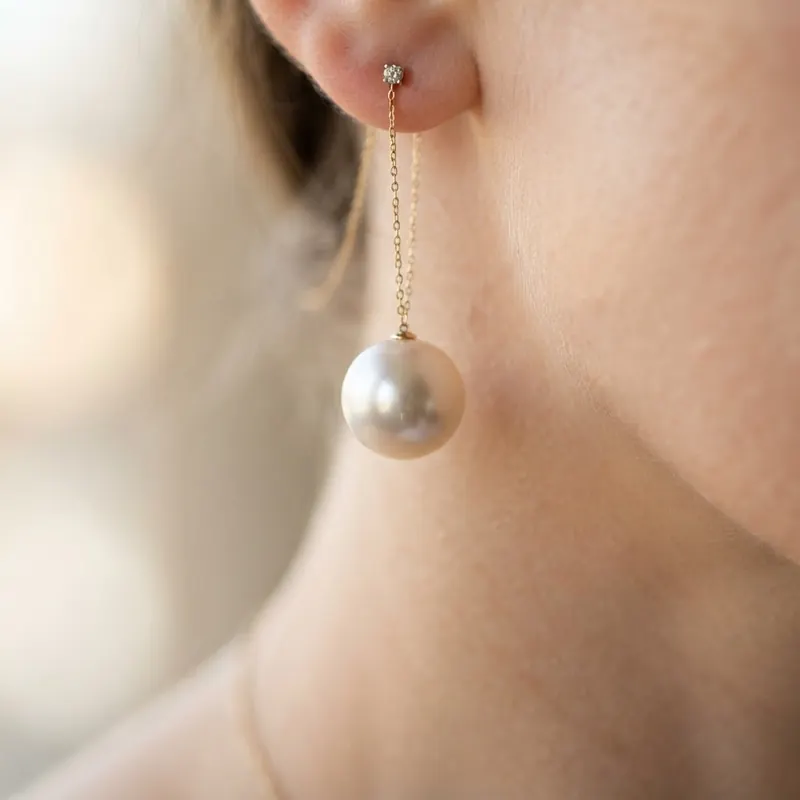
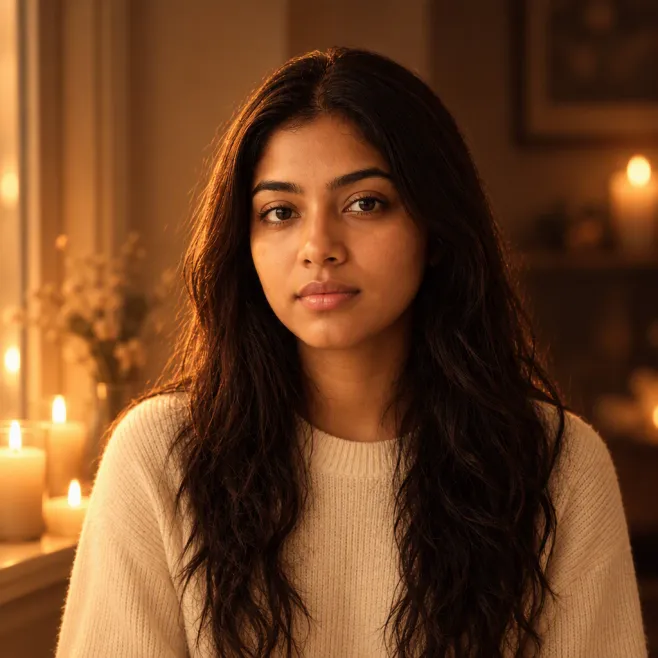
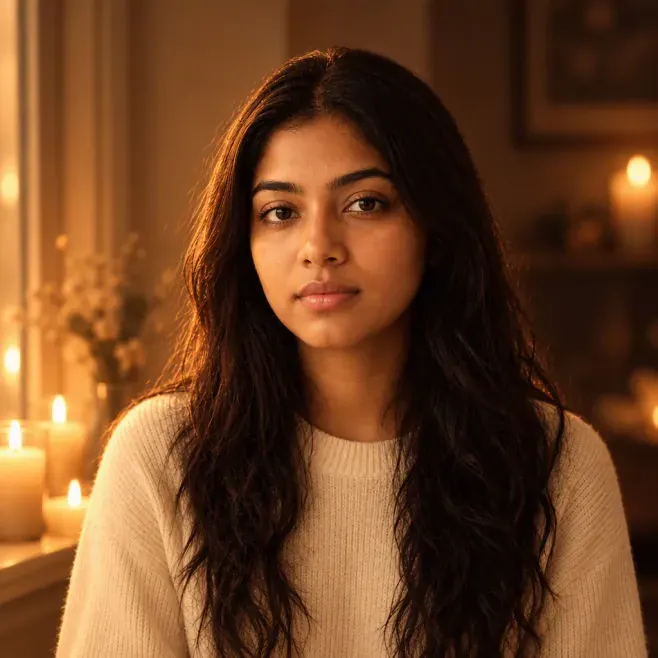
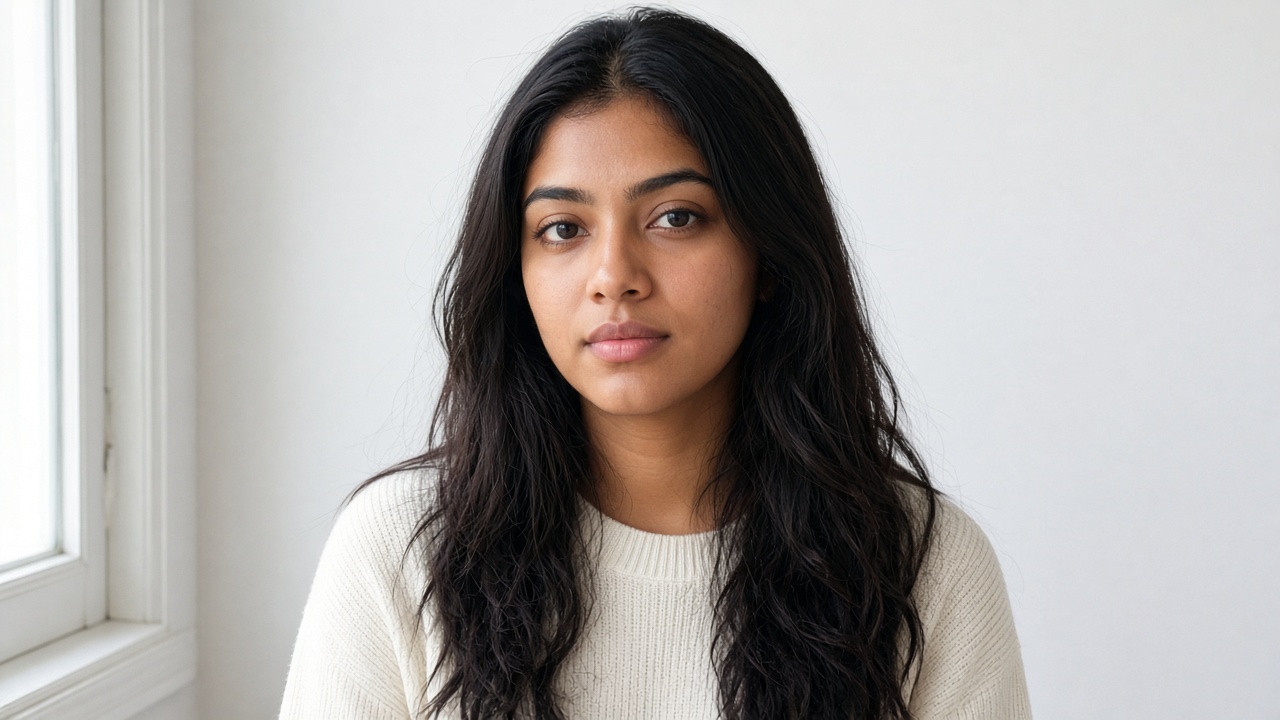
Beauty still — Soft Beauty Headshot

Ultra refined beauty headshot, soft butterfly lighting, luminous skin, clean ivory backdrop, 85mm feel. Use Text to Image, then Image to Video if you want a subtle push-in.

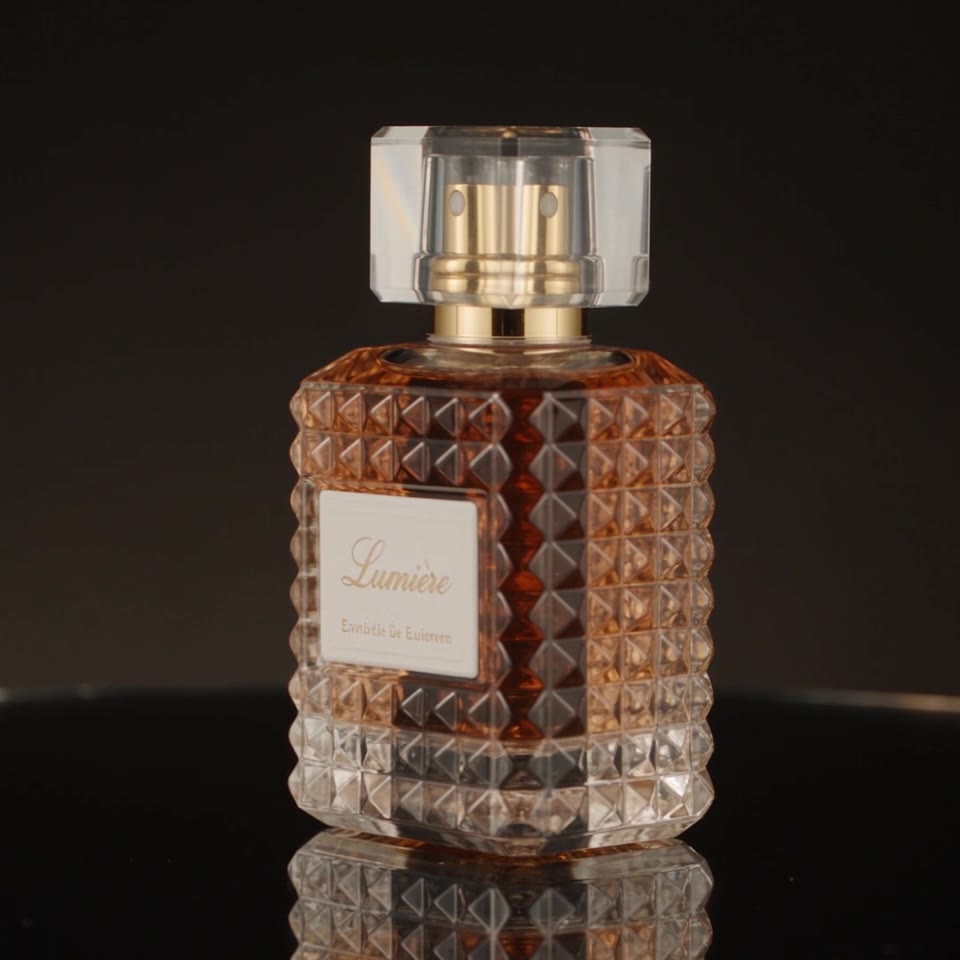
Product still — Glass Serum Hero

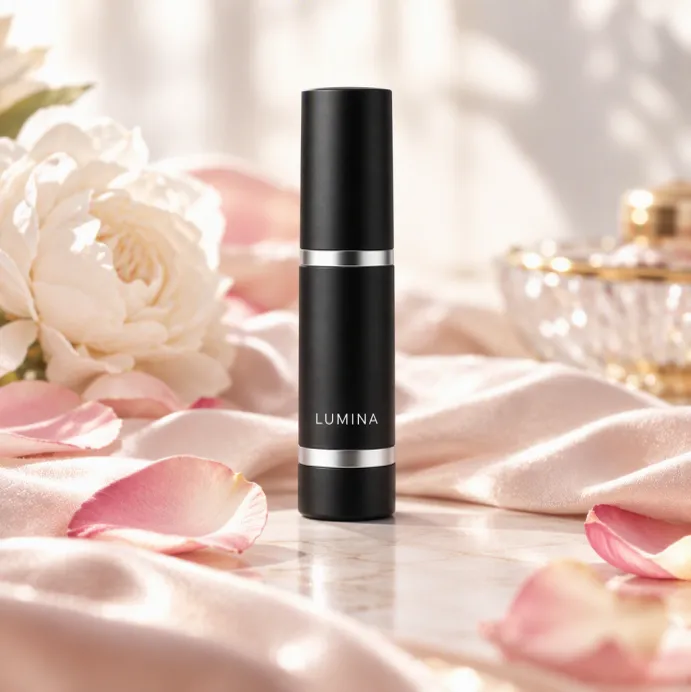
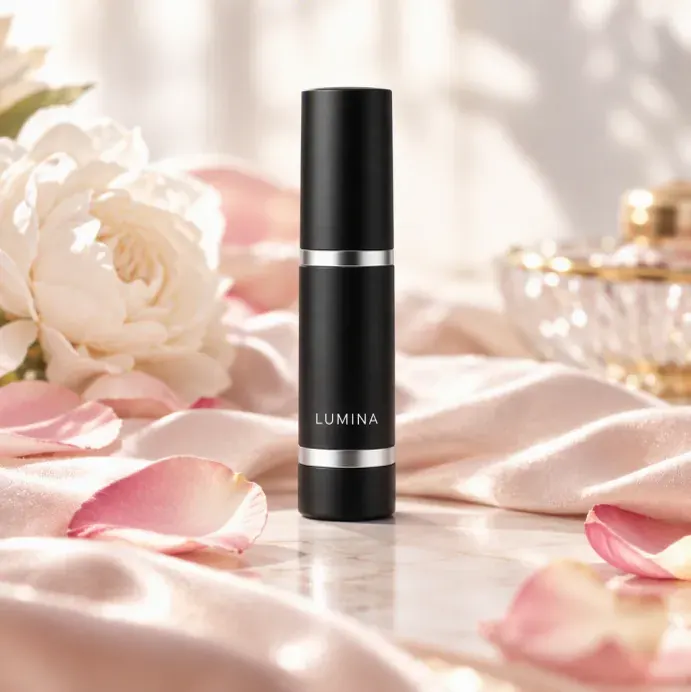
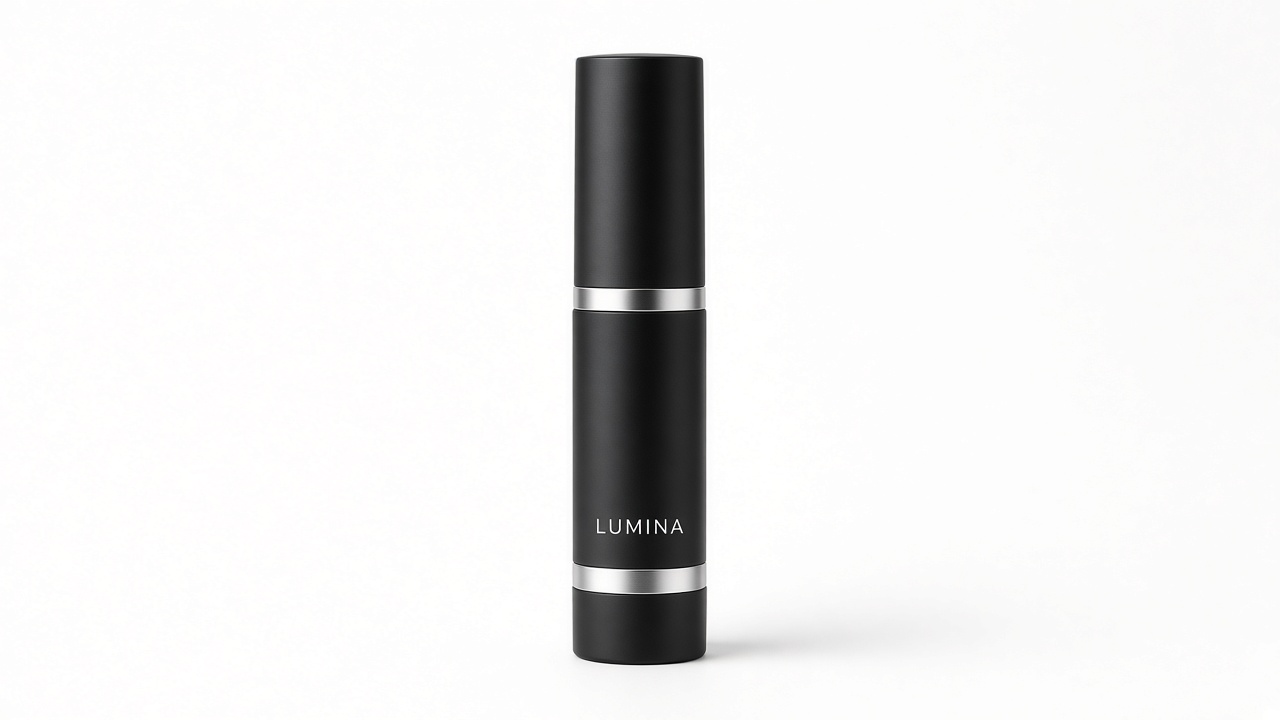
Serum bottle with water droplets on frosted glass, blush-pink gradient, luxury advertising still. Strong I2V candidate: slow orbit or gentle push while locking the bottle design.

Cinematic T2V — Neon Rooftop Chase

Photoreal chase language: subject identity, rainy neon night, handheld pursuit, one clear conflict beat. Start in Text to Video; keep “no dialogue / no subtitles” if you want a clean cut.

I2V motion lock — Cliffside Linen

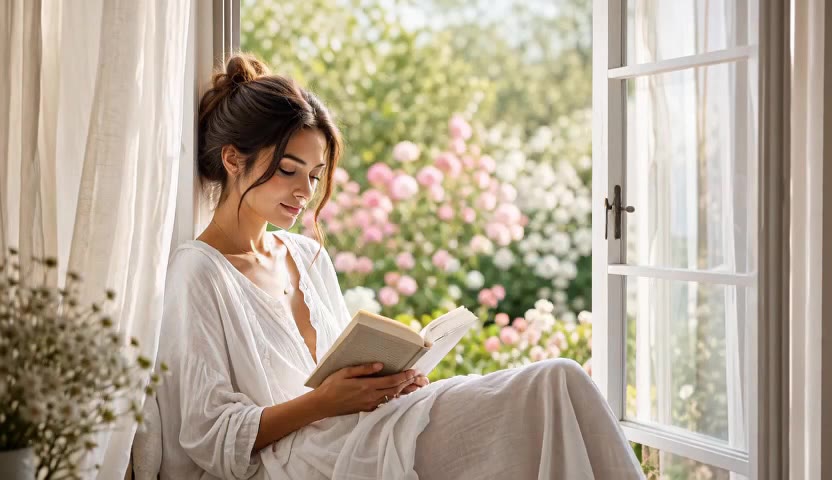
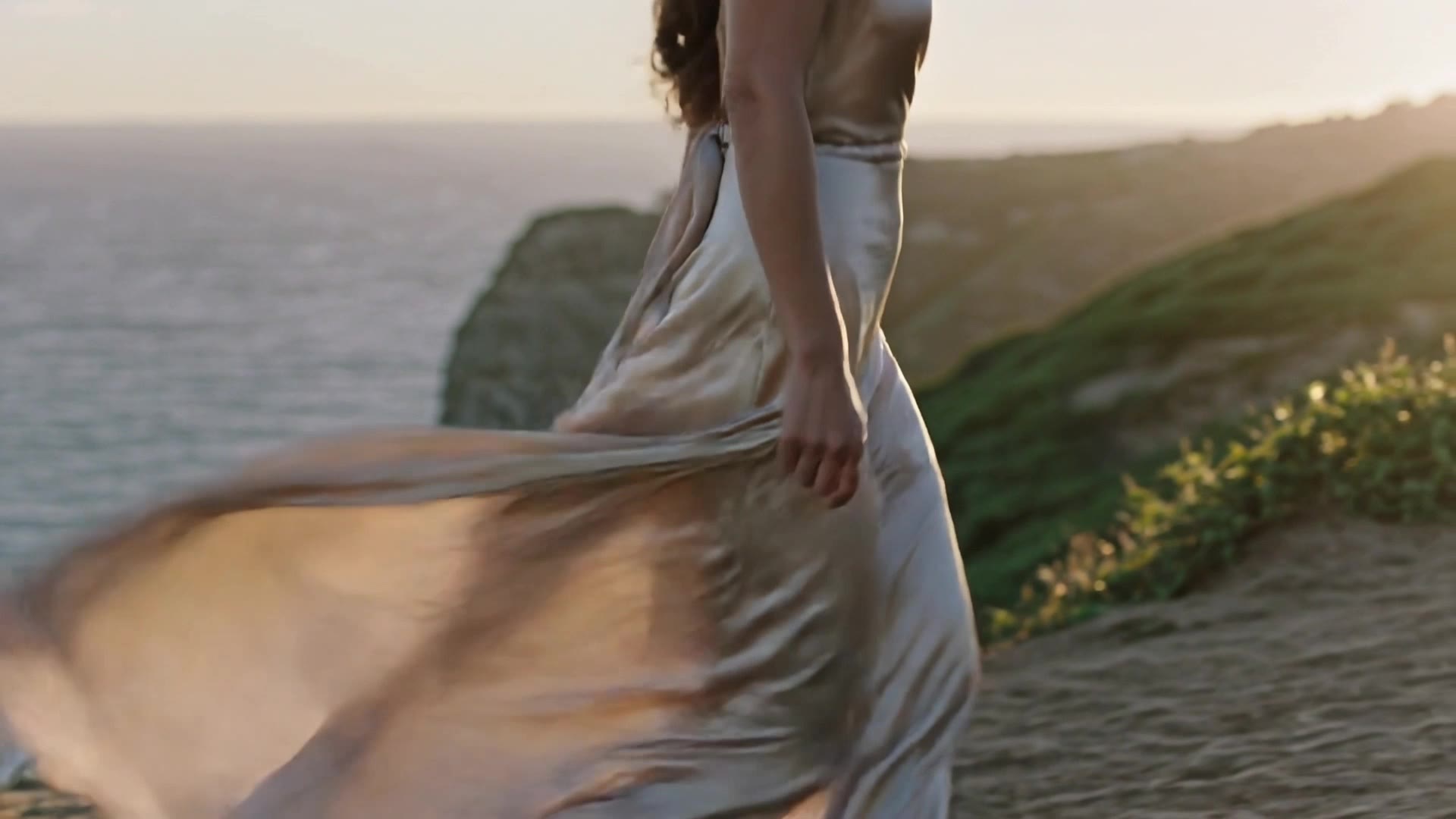
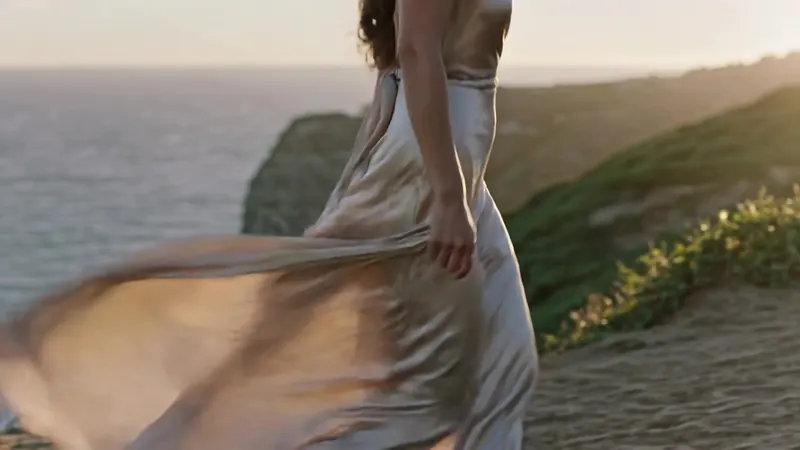
Reference-first: same outfit and coastal cliff, then timed beats (wind → walk → spin → smile). Classic Image to Video pattern — lock likeness, script the motion.

Browse showcase on the homepage

5. Credits, ratio & duration

Every job estimates credits before you run it. Cost rises with longer duration, higher resolution, premium models, and extra reference images.

Aspect ratio

Pick framing the channel needs — 16:9 for YouTube-style, 9:16 for vertical, 1:1 for feeds. Match the ratio to the final crop so you do not waste motion outside the frame.

Duration

Shorter clips cost fewer credits and are easier to prompt well. Lock composition on a short take, then extend length once the look is right.

Free to start

New accounts get 10 credits on signup — enough for a first low-cost generation. No card required to try. See Pricing for packs and plans.

View pricing

6. Start creating

Open Create for the shared studio feed, or jump straight into a tool page. Recreate from showcase whenever you want a strong starting brief.

Guide FAQ

Do I need a different prompt style per model?

Use the same clear formula first. Then tweak per model only if needed — some prefer shorter beats, others tolerate richer camera notes. Compare outputs instead of rewriting from scratch every time.

Should I start from text or from an image?

If you already have a frame you love, use Image to Video or Image to Image. If the idea only exists as words, start Text to Video or Text to Image, then optionally animate the still.

How do I reuse a showcase prompt?

On the homepage showcase, tap Recreate. The brief lands in Create (or the current tool composer). Edit, switch model, set ratio, then generate.