Social posts and Stories
Turn a horizontal photo into a 9:16 Story or a 4:5 feed post without cropping anyone out.
Expand any image beyond its borders: pick a new size, drag your photo into place, and AI fills the rest — an online image expander for uncropping photos to any format.
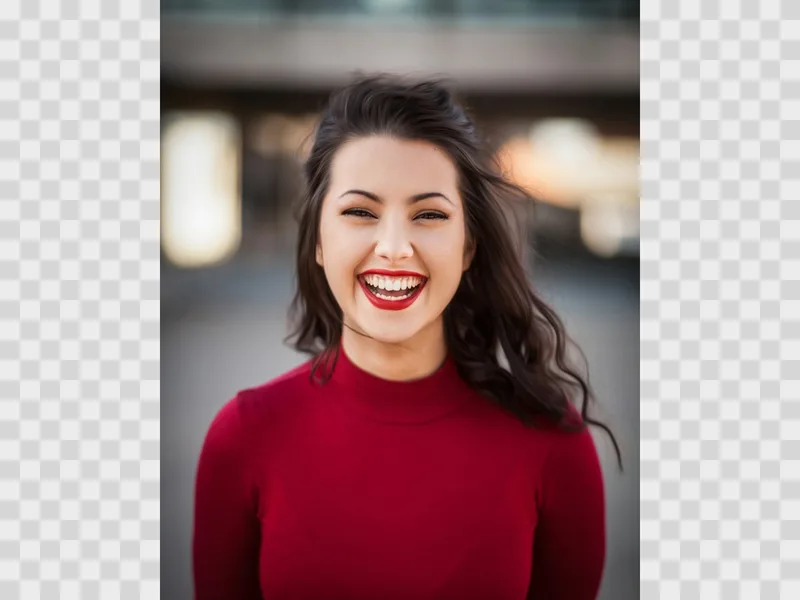
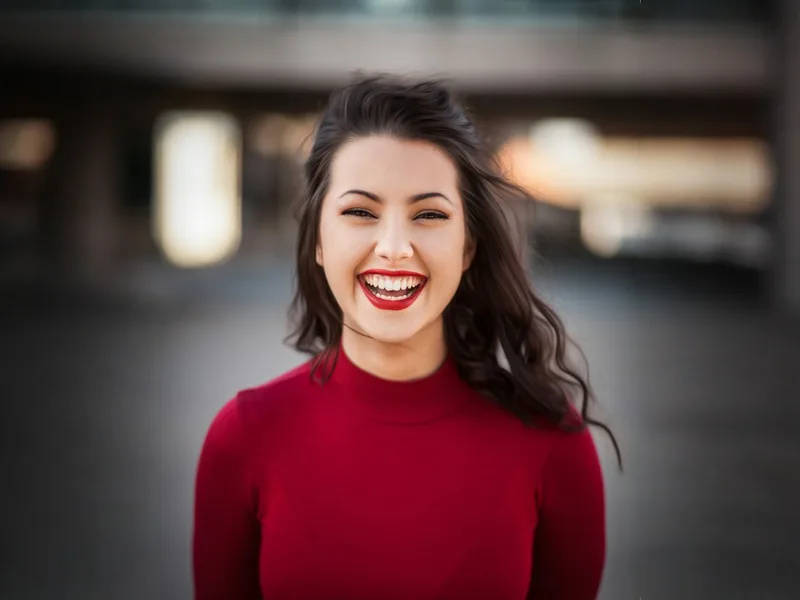
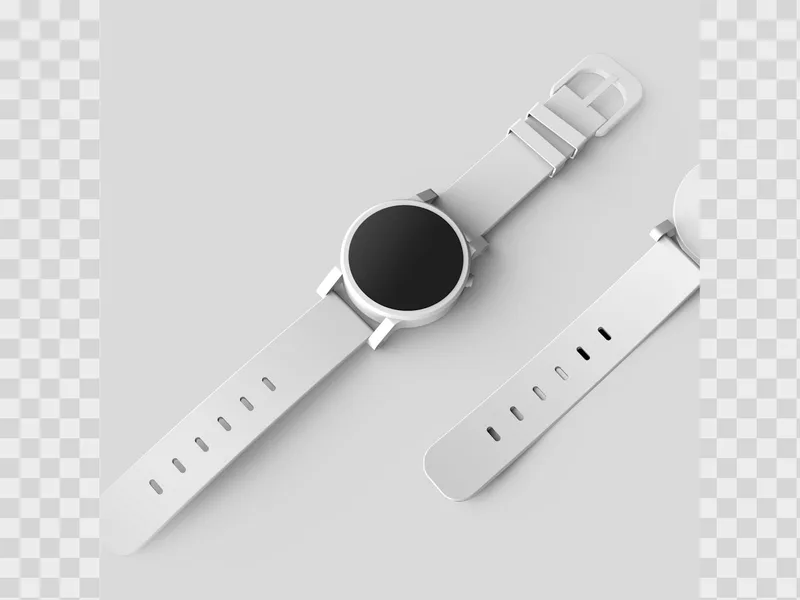
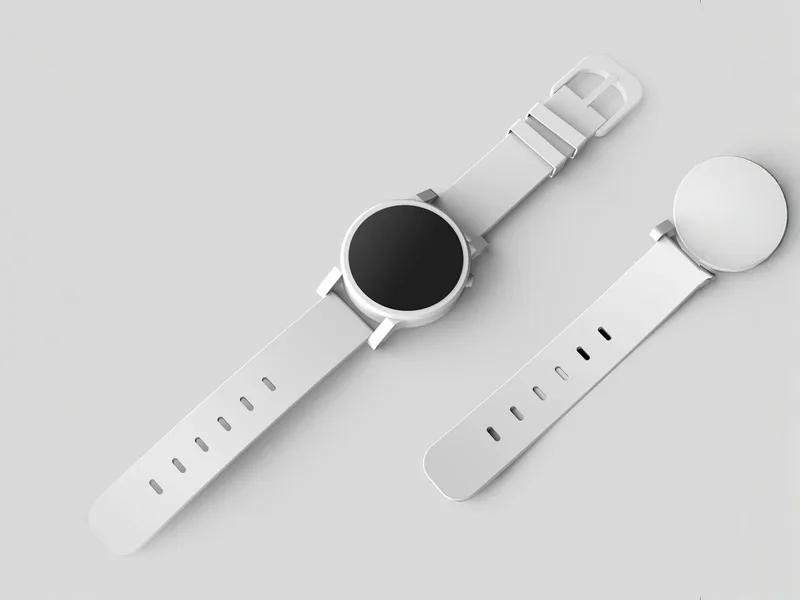
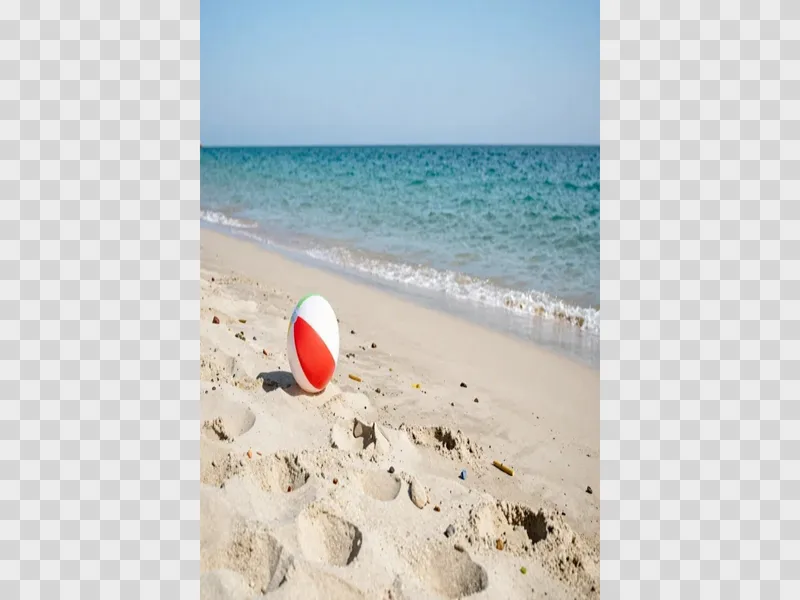
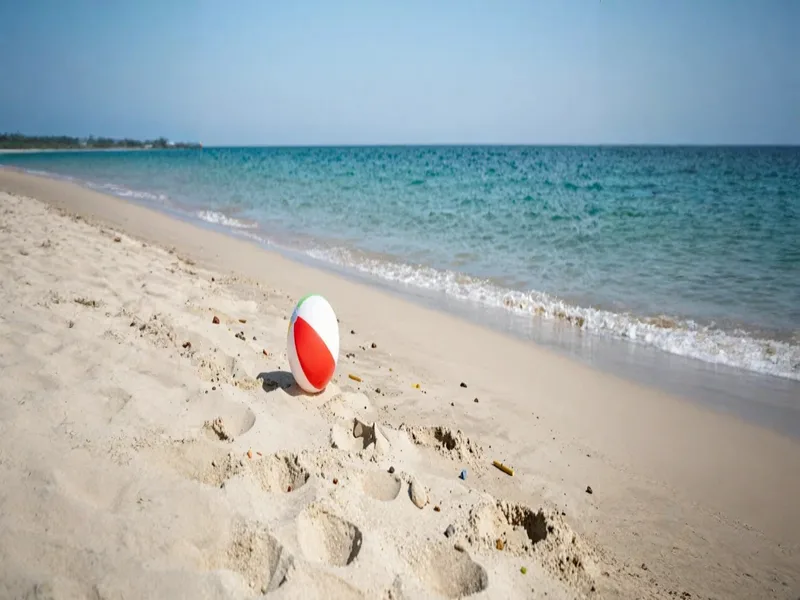
Add a JPG, PNG or WebP up to 10 MB — a photo, product shot or artwork.
Pick 1:1, 4:5, 9:16, 16:9, 3:2, or enlarge the frame ×1.5 / ×2, then drag your photo to where it should sit in the new canvas.
Click Expand image, compare before and after, and download — or upscale it or turn it into a video next.
Turn a horizontal photo into a 9:16 Story or a 4:5 feed post without cropping anyone out.
Widen a portrait into a 16:9 header, YouTube thumbnail or slide background with room for text.
Give tight product shots more breathing room and a consistent square or 4:5 frame.
Uncrop photos that were cut too close — add sky above, floor below or scenery at the sides.
Pick the plan that matches your pace
Subscribers get +20% extra credits at the same price
Subscribers receive: 1,080
Subscribers receive: 3,600
Subscribers receive: 6,600
Subscribers receive: 14,400
Subscriptions renew until canceled. Credit packs are one-time and expire 180 days after grant. Refunds & Billing · Terms · Privacy Policy · Contact Us · Pricing
aiMakeVideo is an independent AI video platform and is not affiliated with the model providers.
An AI image extender (or image expander) makes a picture bigger than its original frame. Instead of stretching or cropping, it generates new content around your photo that matches the scene, so you can uncrop an image to a new aspect ratio or simply give it more space.
Upload the image, choose a size such as 16:9, 9:16, 1:1 or ×2, drag your photo to the position you want inside the canvas, and click Expand image. The result keeps your original photo and fills the checkered area with matching content.
Outpainting — also called generative expand — is the opposite of inpainting: instead of filling a hole inside a picture, the AI paints beyond its edges. It continues the lighting, perspective and textures of your photo so the added area looks like part of the original shot.
Yes. It does the same job as Canva Magic Expand — generative expand to a new size — directly in your browser without a design-app subscription. Choose the canvas, place the photo and pay per image with credits.
Bria Expand uses 10 credits per image and FLUX.2 Pro Outpaint uses 15. The price is shown on the button before you run it, and failed jobs are refunded automatically. See Pricing for plans and credit packs.
No. After the AI expands the image, your original photo is pasted back at its exact position with a soft blend at the seams, so its pixels stay as they were and only the new area is generated. Colours of the new area are matched to your photo.
Upload JPG, PNG or WebP files up to 10 MB. The expanded image is up to 2048 px on its long side; for a bigger file, run it through the Image Upscaler afterwards, or bring it to life with Image to Video.