Scratches, creases and tears
Removes dust, scratches, fold lines and small tears that run across the picture.
Upload a scan or a phone photo of an old print. Repair mode removes scratches, creases, stains and fading and rebuilds lost detail at about 4K; keep-framing mode enhances the photo at its own size and shape. Both can bring a black-and-white photo to life.
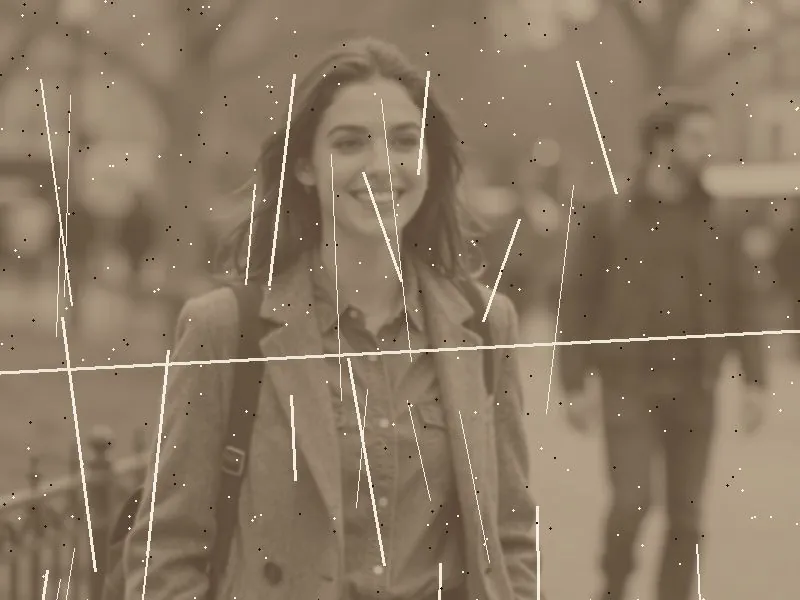

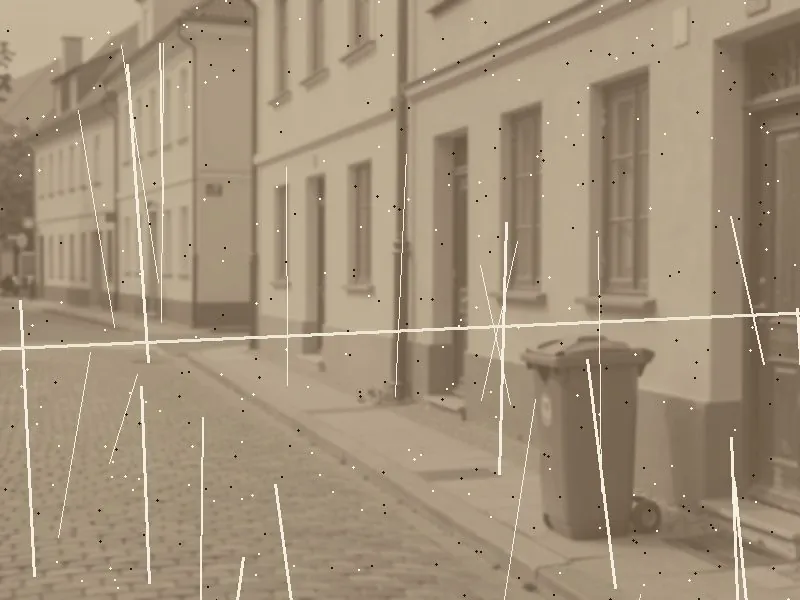
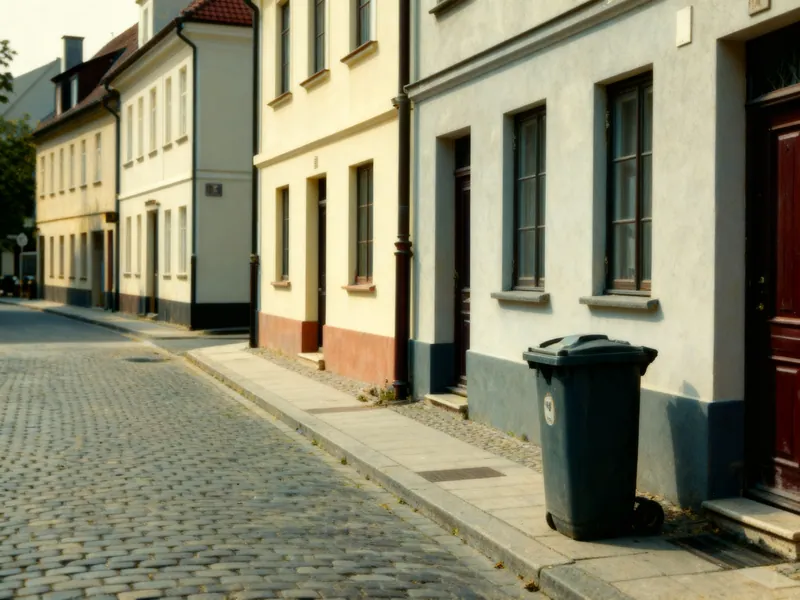
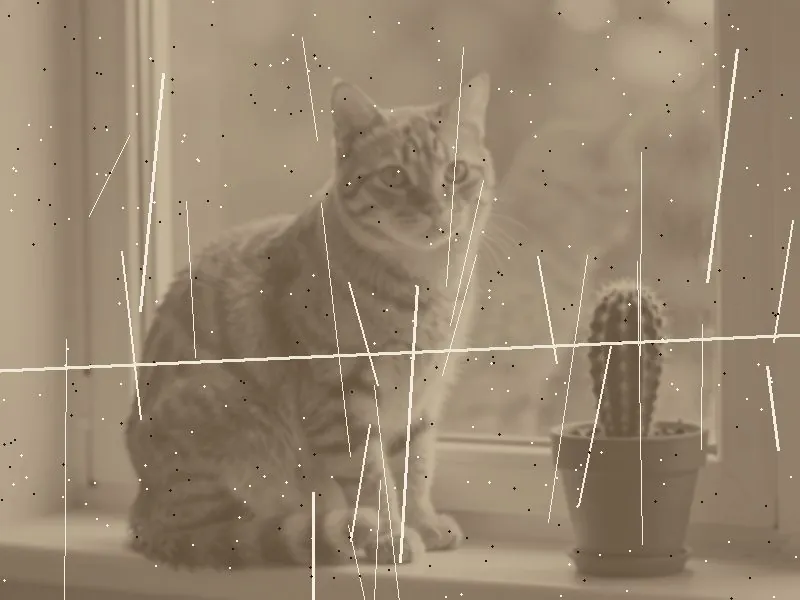
Upload a JPG, PNG or WebP up to 10 MB. A flat, evenly lit scan with the whole print in frame works best.
Colorize is on by default — turn it off to keep the black-and-white or sepia look. Add face enhancement for portraits.
Press Restore photo, drag the slider to compare before and after, then download the result or bring it to life as a video.
Removes dust, scratches, fold lines and small tears that run across the picture.
Brings back contrast and natural tones in yellowed, washed-out or sepia prints.
Optionally adds realistic color to monochrome family photos and portraits.
Pick the plan that matches your pace
Subscribers get +20% extra credits at the same price
Subscribers receive: 1,080
Subscribers receive: 3,600
Subscribers receive: 6,600
Subscribers receive: 14,400
Subscriptions renew until canceled. Credit packs are one-time and expire 180 days after grant. Refunds & Billing · Terms · Privacy Policy · Contact Us · Pricing
aiMakeVideo is an independent AI video platform and is not affiliated with the model providers.
It needs a free account and uses credits — the exact cost (including face enhancement, if you turn it on) is shown on the button before you start. New accounts get free sign-up credits in most regions, and credits are refunded automatically if a job fails. See Pricing.
Yes. Colorize is on by default and adds natural color while restoring. Turn it off to keep the original black-and-white or sepia tones and only repair the damage.
Repair mode adds an optional face-restoration pass (GFPGAN) that sharpens eyes, skin and features in portraits and group photos, for a few extra credits. Keep original framing includes face enhancement at no extra cost.
Repair mode returns about 4K on the long edge (for example 4096 × 3072) in the standard shape closest to your photo. Keep original framing keeps your photo's own size and aspect ratio, upscaled by the largest whole factor that stays within our 24-megapixel limit — a 1600 × 1200 photo comes back at 4800 × 3600.
JPG, PNG and WebP images up to 10 MB — scans, phone photos of prints or old digital pictures. Very large images are downsized in your browser before upload.
Press Bring this photo to life to animate it with Image to Video, sharpen other pictures with Unblur Image or enlarge them with the Image Upscaler.