


From an idea
Write a sentence about a character: a pirate captain, a space explorer, a zombie chef. Colours and clothes matter most.
Describe a character, or upload a picture or a photo of yourself. The AI paints it on a skin grid and you get a 64×64 skin you can turn in 3D and import into the game.
Credits are refunded automatically if a run fails for a technical reason.
NOT AN OFFICIAL MINECRAFT PRODUCT. NOT APPROVED BY OR ASSOCIATED WITH MOJANG OR MICROSOFT.
Each skin is shown from the front and the back. These are AI-made samples from our own descriptions and pictures, so yours may come out differently. Download any of them for free.
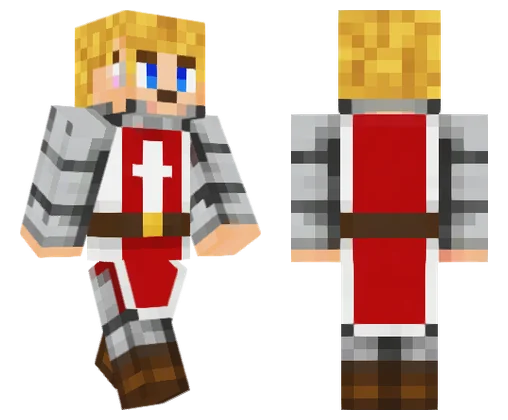
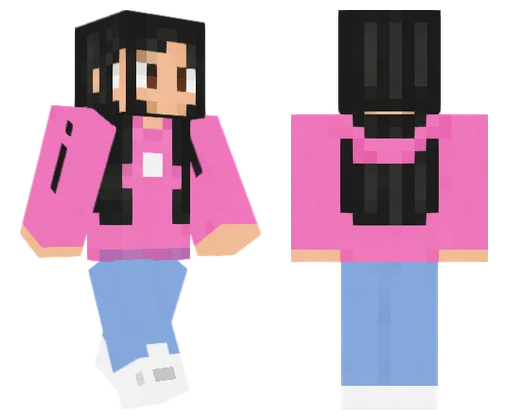
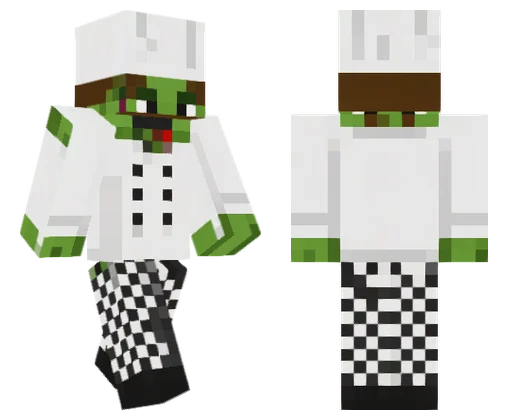
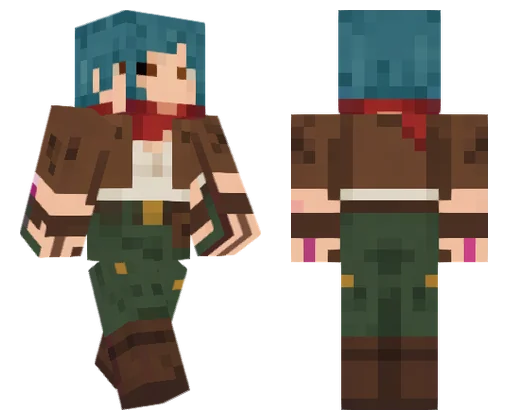
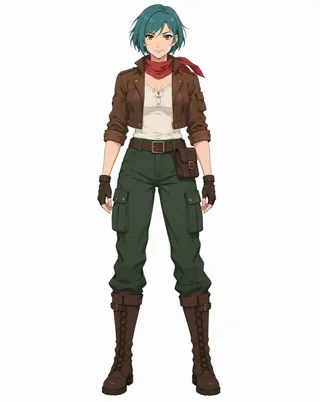
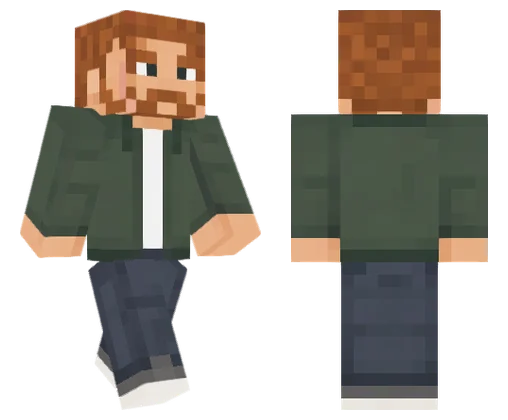

Pick Describe it and write what your character looks like and wears, or tap an idea such as Knight. Or pick My photo or Character picture and upload one.
Press Generate skin. The AI paints your character from four sides on a skin grid, and the page turns that painting into a 64×64 skin. It usually takes about a minute.
Drag the preview to see every side, switch between Walk and Stand, then download the PNG and import it into Java or Bedrock.
The download is a standard 64×64 PNG with classic (wide) arms. Choose the classic or wide model when the game asks.
Once your skin is ready, press Make a thumbnail with this skin. The Minecraft thumbnail maker opens with your skin already loaded, so you only pick a scene and a title.
NOT AN OFFICIAL MINECRAFT PRODUCT. NOT APPROVED BY OR ASSOCIATED WITH MOJANG OR MICROSOFT. This is an independent AI tool. It uses no game logos or files, and the sample skins are our own originals.
Write a sentence about a character: a pirate captain, a space explorer, a zombie chef. Colours and clothes matter most.
Upload a photo of you or another adult who agreed to it. Hair, beard, glasses, skin tone and outfit colours carry over into blocky form.
Turn your own drawing, game avatar or a screenshot of your character into a skin. The colours, outfit and accessories are kept, simplified to pixels.
Pick the plan that matches your pace
Subscribers get +20% extra credits at the same price
≈ 18 videos5s · 480p each
Subscribers receive: 1,080
≈ 38 videos5s · 480p each
Subscribers receive: 2,280
≈ 110 videos5s · 480p each
Subscribers receive: 6,600
≈ 240 videos5s · 480p each
Subscribers receive: 14,400
Subscriptions renew automatically at the price shown until you cancel, and we'll tell you before any price change. Cancel anytime in Settings → Billing; you keep access until the paid period ends. Credit packs are one-time and expire 180 days after grant. Prices include any tax collected at checkout. Refunds & Billing · Terms · Privacy Policy · Contact Us · Pricing
aiMakeVideo is an independent AI video platform and is not affiliated with the model providers.
No. The account is free, but each skin uses credits, and the exact cost is shown on the button before you start. Credits are refunded automatically if a run fails for a technical reason. The sample skins on this page are free to download.
Yes. You get a standard 64×64 PNG with classic arms, which both editions accept. On Java you add it in the launcher; on Bedrock you import it in the Dressing Room on Windows, Android or iOS. Consoles can't import skin files.
Yes, for photos of adults only, and you confirm that before you generate. Your hair colour and style, beard, glasses, skin tone and outfit colours are kept, and parts the photo doesn't show are made up to match. It's a blocky version of you: the face is only 8×8 pixels.
Yes. Upload a drawing, a game avatar or a screenshot of one character, ideally full body. Use characters you made or have the right to use. The colours, outfit and accessories are kept and simplified to pixels.
Not yet. Every skin has classic 4-pixel arms and only the base layer; the outer layer is left empty. You can add a hat or jacket layer afterwards in any skin editor.
Turn it around in 3D first: the sides are the weakest part. Generate again for a new version at the same price. In our tests every painting turned into a skin; if one ever can't be read, the page says so, and that run still uses its credits.
No. NOT AN OFFICIAL MINECRAFT PRODUCT. NOT APPROVED BY OR ASSOCIATED WITH MOJANG OR MICROSOFT. It is an independent AI tool that makes skins in the standard file format, with no game logos or files.
Usually about a minute. Keep the tab open. If you leave, come back to this page in the same browser and it picks the run up; your recent skins are listed under the tool.